Wondering about how to create a Christmas dance AI video without having to film any clips? You can create a holiday dance video just from a picture in a few simple steps. The amusing dance videos that you watch on Instagram Reels and TikTok every holiday season are created within minutes with no.
 Follow Us for Daily Trends
Get new prompts and creative ideas every day.
This blog post will explain how the trend works, what it takes to make such a video, how to come up with entertaining video ideas, step-by-step instructions on how to create the video, and a prompt to use. By the end of this post, you will be ready to create your own Christmas video where you can let your pet, kids, or your whole family dance.
What Is A Christmas Dance AI Video?
The Christmas dance AI video trend involves taking a simple Christmas dance with little movements and using it on yourself or your loved ones. But instead of filming yourself, you just upload a picture and our AI video generator does the rest.
There are two methods used in creating such videos: the first one is by using Preset or reference-to-video tools. In this case, a user selects the routine needed, such as Christmas party dance or elf dance and AI remakes the performance in its entirety, timing and camera movement included. All that must be done from your end.
The second method that can be employed is by using a prompt-based tool. A user must simply describe a dance, movements and the scene in a written form using a few words, and AI makes the video according to the user description. Both methods work fine. Preset tools are faster and predictable whereas prompt-based tools allow for more freedom in terms of creativity.
How To Make Trending Christmas Dance Video Step by Step
Using Presets or Templates
Step One: Select Your Template
Decide on who is doing the dancing, their outfit, and location. Keep it simple- for example: “me dancing as an elf in a toy workshop” or “my dog dancing wearing a Santa hat.” It’s better to go for a simple idea than anything complicated.
Step Two: Select The Right Photo
There are steps to follow to animate a photo into a dancing video effectively. The image should be sharp, clear, taken in good lighting and a clear background. Avoid blurry selfies, photos where the faces overlap, and those taken from unclear angles.
Step Three: Write The Prompt
If the tool has presets such as elf dance, party dance, family dance- choose one. If the tool is prompt-based, simply refer to the prompt guide below to provide information about the dancer, dance moves, location and lighting.
Step Four: Set Length And Aspect Ratio
If you are preparing for a social media post, the aspect ratio should be 9:16. It is better to start from a shorter video, around 6-12 seconds.
Step Five: Generate And Review
Rendering usually takes only a few minutes. Watch the final output to review the video after it is ready.
Step Six: Download and Share
Download the video, then use your posting app to add trending audio, captions, or text. Post it as a Reel, send it as a dancing Christmas card, or drop it in the family chat. If you want to send a dancing Christmas video to your family, WhatsApp or Instagram and the clip feels like a gift rather than an ad.
Using Reference to Video (with driving video)
- Go To Reference to Video: Navigate to LightX’s video platform’s reference or motion-transfer tool.
- Step 1: Define your Characters: Establish clear visual profiles of the people in the video.
- Step 2: Use Video Reference and Replace Faces: If you own or have a source driving video (such as the Christmas pyjama dance video). Configure that as your video reference. Write a precise prompt to replace the faces and models. For example, replace person 1 who is dancing in the middle with reference image 1 and copy the same dance steps and hand movements as shown in the video.
Using Reference to Video without driving video
- Step 1: Define your Character. Establish clear visual profiles for your video character.
- Step 2: Generate using prompts if there is no driving video. If you don’t have a reference video, generate the whole effect using a detailed prompt. Clearly specify your parameters. Check out the Image to Video Generator for more relevant details.
1. Define character image outfits, makeup & style
Detail the specific wardrobe pieces such as party clothes, santa claus clothes, elite clothes, shirt or pants or an expensive tuxedo, statement jewellery, makeup and hair styling.
2. Define scene background, lighting, camera
Specify the shot uses a ultra wide angle camera motion with bright light and natural ambience with perfect motions attached to it.
3. Define how the character is interacting or acting (along with motion)
Explicitly outline the dancing timing, steps and actions such as dancing during a specific time or moment.
Also read: How to Make a Trending Christmas Video with AI (Copy-paste prompts)
Trending Video Ideas to Try
Make these Christmas video ideas for Instagram and TikTok work because they’re easy to understand and fun to share.
1. Funny Santa Dance Reel
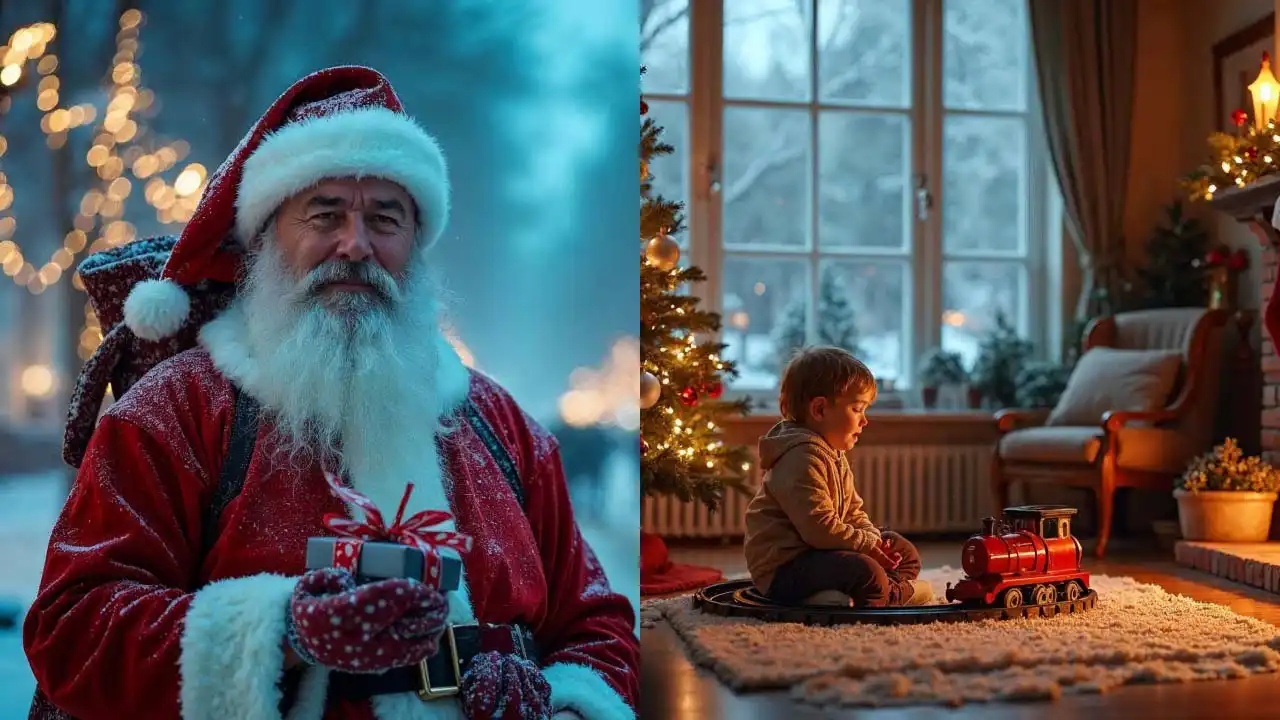
Put a friend, a relative, or yourself in a Santa suit doing a goofy dance. A viral Santa dance video works best when the dancer keeps a completely serious face while the moves are funny to watch.
2. Elf Dance Video
An elf costume dance reel set in a toy shop is a classic. Bright colors, pointed hats, and fast little steps look great in AI videos and the scene is easy to describe in a prompt.
3. Pet Christmas Dance Video
A pet Christmas dance video is one of the most shareable formats. Upload a clear photo of your dog or cat in a tiny sweater or Santa hat and let them dance beside the tree. Christmas dance with pets videos tend to get comments and shares because everyone wants to tag a pet owner in this type of reel or video.
4. Christmas Pyjama Dance Video
Set the dance in front of a glowing tree with presents stacked below. It’s cozy, familiar and fits a Christmas morning dance video, where everyone is still in pajamas.
5. Duo Dance With a Friend or Partner
Some tools let you upload two portraits, or one photo with two people, so both appear in the same routine. It’s great for best friends, siblings, couples, or coworkers. Pairing someone who hates dancing with someone who loves it is half the joke.
6. Festive Group Dance Reel
For a bigger scene, describe a family or friend group dancing together in a living room or snowy street. Group photos can be harder for AI to keep consistent, so keep the group small and the faces clear.
7. Christmas Dance Video for Kids
Kids love seeing themselves or cartoon-style characters dance. Always check your tool’s rules about photos of children, and get a parent or guardian’s permission. If a tool doesn’t allow children’s photos, use a character or a toy-style avatar instead.
Copy & Paste Prompt for a Christmas Dance AI Video
Good dance video prompts for AI need to be descriptive. Here is a full prompt you can paste into any image-to-video tool, followed by a breakdown of why it works.
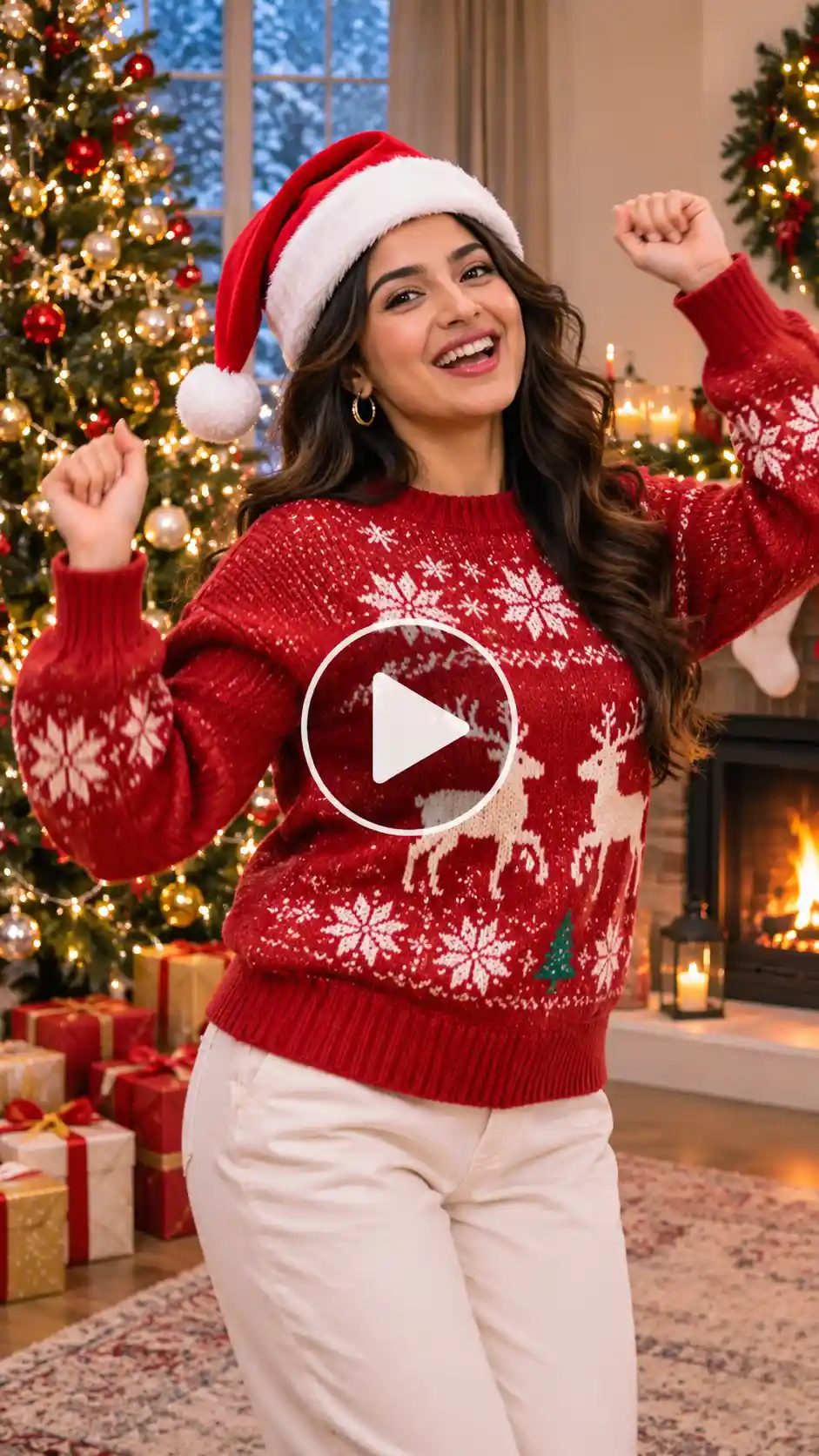
Prompt to copy :
Use the uploaded photo as the base. A cheerful woman in a red knitted Christmas sweater and a Santa hat stands in front of a glowing Christmas tree in a cozy living room. She dances with small, rhythmic steps, claps twice, then raises both arms and sways side to side with a big smile, looking at the camera the whole time. Warm fireplace light and twinkling string lights glow in the background, with soft snow falling outside the window and wrapped gifts stacked beside the tree. The camera begins with a medium shot, then slowly pushes in toward her face. Her face, hairstyle, and outfit stay consistent throughout. Upbeat jingle-bell music, joyful and playful mood, vertical 9:16, smooth natural motion, no text, no logos.
Tips on How To Draft Christmas Dance AI Prompt
1. It’s important to specify what type of dance you want. Use specific terminology instead of vague phrases like “great dance” or “popular dance.” Include a few specific actions, for example, some quick movements, some clapping, moving the arms, some side to side movements, some jumping, and some bending of the head. If humor is wanted one should go with the full description of the motion.
2. Next step is the setting of the performance. It is necessary to describe the place where you’re dancing e.g., living room, toy shop, snowy street, and kitchen. Also, it is good to add some ornaments around the Christmas tree and decorations of the area for a Christmas themed video.
3. Also control the camera. Specify if the camera is using a long shot, medium shot, or close up and its motion.
4. Don’t forget about the sound. If something is used that adds music to the video it is good to specify the type of music (for example jingle bells, or upbeat music, or vocal music). If the music is not included in the video, you can put it in later.
Also read: How to Make a Christmas Transition Video: Easy Steps, Ideas and Prompt
Why Will Christmas Dance Videos Trend this December?
Christmas dance videos go viral for several reasons:
- They are short and quick to understand. Most of them take 5-15 seconds making them ideal for feeds where scrolling happens faster than ever and where the punch line needs to be delivered fast.
- They are personal and relatable. When seeing your cousin, boss, or even dog having a funny dance, it seems better than any other video.
- December is the right time as people hunt for holiday content to share or remix.
- Also, everybody can become a part of this trend. Starting with just one photo, you can make the Christmas dance meme as many people join in and become popular.
- Using dancing clips also provides a good way of sending happy holidays wishes to your friends and relatives.
Conclusion
Learning how to create a Christmas dance AI video is easier than you might think. Just take a good photo, select an appropriate preset, and write a little supporting text (with one example or a quote).
Whether you want a funny Santa dance Reel, a pet Christmas dance video, an elf dance, or a duo clip with your best friend, the deal remains the same. Keep it short, keep it funny and get ready to make trending videos.
FAQs
- What kind of photo works best?
A clear image with no blurry angles or harsh lighting will work best.
- What resolution should I export the video in?
You can export the video in MP4.
- What file formats and sizes can I upload?
The file formats that we accept are JPEG, PNG and WebP.
- How long can the video be?
The video can be from 15 seconds to 30 seconds.
 Create the Rain Dance Trend ♫
Upload your image and create rain dance music video