Want to know how to make the Alors on Danse AI video and join one of the most recognisable dance and meme trends on TikTok, Instagram Reels, and YouTube Shorts? The idea is simple. You upload photos of yourself and a friend, and AI turns them into a short clip set to Stromae’s “Alors on Danse.” One of you plays the keyboard with total calm while the other brings the reactions, gestures, and laughter.
 Create the Rain Dance Trend ♫
Upload your image and create rain dance music video
Create the Rain Dance Trend ♫
Upload your image and create rain dance music video
You don’t need to learn choreography or film anything. The mood is relaxed, the contrast between the two roles is the joke, and the result looks like a real studio clip.
In this blog, you’ll learn how to create an Alors on danse AI video step by step, which photos work best, the prompts to copy, and a few tips to get more views.
What is the Alors on danse AI trend?
The Alors on Danse trend is a short video set to a slowed-down version of Stromae’s track. The original dance clip was posted by a group of friends who moved in sync with easy, smooth steps. They tugged at the corners of their shirts, gave small shoulder shrugs, swayed their arms to the beat, and looked straight at the camera without trying too hard.
That calm energy is why it spread so fast. Anyone could copy it, and it looked good on everyone. The keyboard meme version adds a second layer. One person plays the keys in a clean white studio while the other steals the scene with big reactions and laughter. The AI version lets you skip the filming. You upload your photos, and the AI makes you, your friend, your kid, or even your pet play the parts.
Stepwise Guide on How to Create an Alors on Danse AI Video
Using a Pre-defined Template<Listing page>
Step 1: Choose the characters for image 1 and image 2, the people you want in the video.
Step 2: Change your background and outfit using prompts.
Step 3: Choose the appropriate resolution and aspect ratio.
Step 4: Click Generate, then download the final video.
If you want to make a video from scratch, use our Image to Video Tool.
Using Reference to Video (Step-by-Step Guide )
Step 1: Go to the Reference to Video Tool.
Step 2: Define your characters. Upload one clear photo for each, such as you and your friend, or you and your pet.
Step 3: If you own a driving video, add it as the video reference and write a prompt to replace the faces in it. If there is more than one character, identify each clearly. For example: “Replace person 1 on the left wearing a black shirt with reference image 1, and replace person 2 on the right with reference image 2.”
Step 4: If you don’t have a driving video, create the whole effect with a prompt. Be clear about who plays the keyboard and who reacts. In your prompt, you can mention:
- Character: image, outfit, makeup, and style
- Scene: background, lighting, camera angle, and more
- Action: how the characters are interacting, for example, one calmly playing the keyboard and the other laughing and reacting to the beat
To learn more about the tool and the steps, visit this blog: How To Swap Face In a Video
Sample prompt and structure to follow
You can swap the characters to suit your idea. Use two pets, a cat and a dog, siblings, two friends, a couple, or anyone you like.
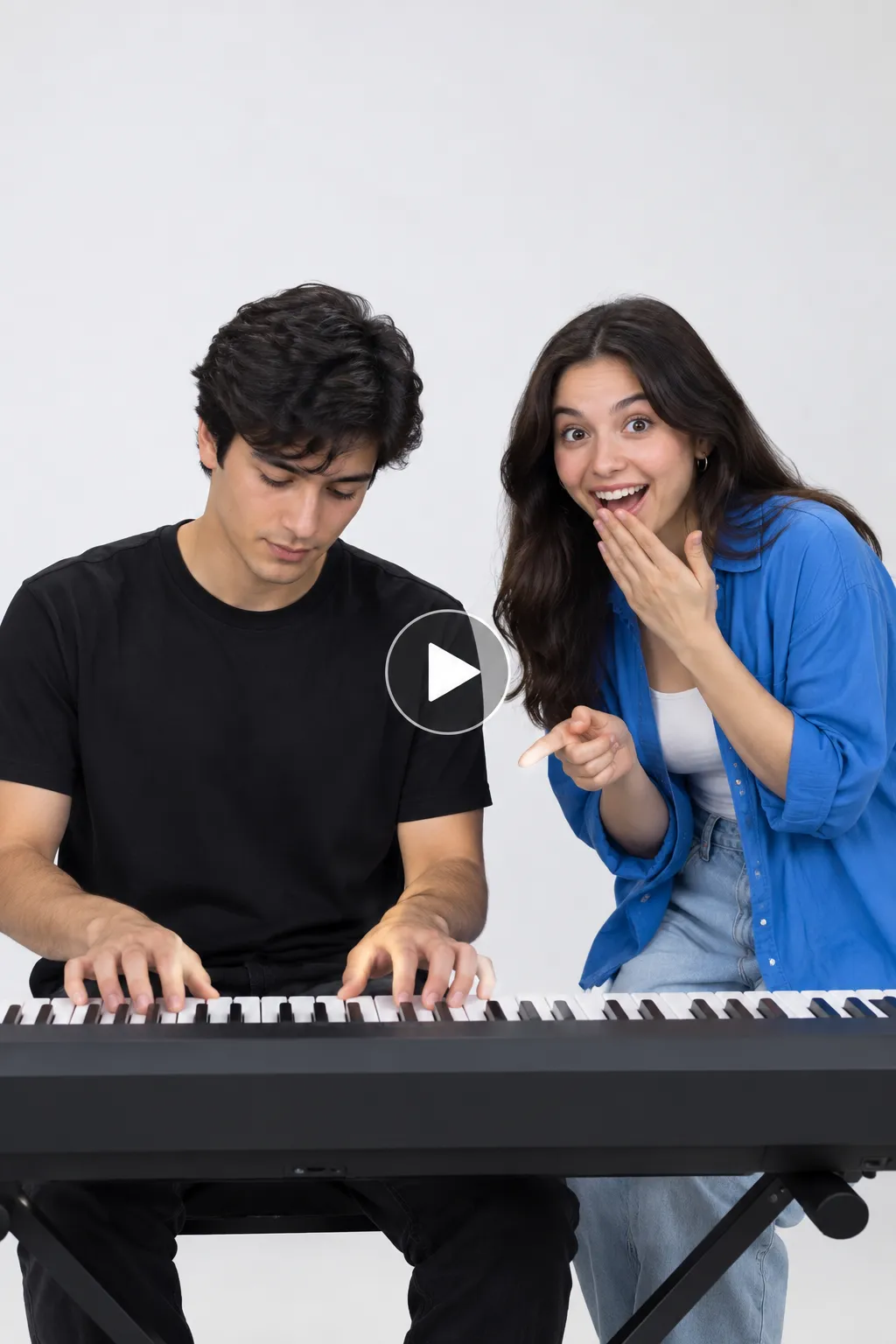
Prompt example :
Character look: Two friends in their 20s with clear, natural facial features and natural skin texture. Person 1 (Keyboard Player) wears a plain black T-shirt, sits upright, and has a calm, focused expression. Person 2 (Expressive Partner) wears a bright casual shirt and has an animated face with a big natural smile.
Background setting: A clean white studio with a seamless white backdrop, soft even lighting, and a black electric keyboard on a simple stand. Nothing else is in the frame.
Camera angle: Steady, front-facing shot on a tripod. It is a medium two-shot showing both friends from the waist up, with a slow push-in toward the keyboard as the video goes on. Vertical 9:16 aspect ratio.
Motion effects: Person 1 plays the keys with smooth, slow hand movements in time with the beat and barely changes expression. Person 2 reacts on the beat with wide eyes, a slow point at the keyboard, a hand over the mouth, a shoulder shrug, clapping, and bursts of real laughter.
Song: Stromae, “Alors on Danse,” slowed version.
Scene description: In a bright white studio, the Keyboard Player plays the melody with total focus while the Expressive Partner reacts to every note, laughing and gesturing toward the camera. The contrast between the calm musician and the loud reactions is the joke. Ultra-realistic, soft studio lighting, clean look, high quality, 12-second video.
Related blog: How to make Halloween costume AI videos
What You Will Get in the Videos
Here’s what your finished video will look like:
- Length: A short clip of about 10 to 15 seconds, perfect for scrolling.
- Shape: Vertical video in 9:16, the same tall format used on TikTok, Instagram Reels, and YouTube Shorts.
- Setting: A clean, softly lit white studio with a keyboard on a simple stand. You can also pick a living room, rooftop, or any simple background.
- What you are doing:
- The keyboard player stays calm and focused, playing slow, smooth notes
- The expressive partner reacts with wide eyes, pointing, clapping, and laughter
- Both of you move in time with the beat
- Camera style: A steady, front-facing shot that feels like it was filmed on a phone and propped up on a stand.
- Sound: The slowed version of “Alors on Danse” plays throughout. Add it when you post.
- Overall feel: Smooth, relaxed, and funny, like you and your friend filmed the clip in a studio.
In short, the AI takes your photos and turns the two of you into the most easygoing duo on your feed.
Tips for the Best Results
- Use photos where each face is clear and looking straight at the camera.
- Keep the background simple so the AI can focus on the two of you.
- Describe the keyboard player and the expressive partner clearly in the prompt.
- Add the slowed “Alors on Danse” sound when you post so your video joins the trend.
- Mention the slow, smooth feel in your prompt, since the trend depends on it.
- Try more than one AI model, as each one handles motion a little differently.
- Stick to vertical 9:16 for short-form platforms.
Related blog: How to make a ceiling fan transition video
Conclusion
The Alors on Danse trend is easy, relaxed, and made for sharing. Whether you want a keyboard duo with your best friend, a group dance with family, or a clip starring your dog, it only takes a few minutes. Pick your photos, write a simple prompt, choose your model, and post your version with the slowed sound.
FAQs
What is the best video length for this trend?
10 to 15 seconds works best. It keeps the slow rhythm without losing viewers and fits TikTok and Instagram Reels.
What aspect ratio should I use?
Use 9:16 vertical video. It fills the screen on TikTok, Instagram Reels, and YouTube Shorts.
Can I use a selfie or a half-body photo?
Yes. A clear, front-facing selfie or half-body photo works well. Just make sure your face is well lit and not blurry.
Can I make this video with a friend, family, or a pet?
Yes. Use the Reference to Video tool and upload two photos. The second one can be a friend, a family member, a pet, or anyone you like.
Which AI models can I use?
You can choose from models like Wan, Seedance, and Kling in the Reference to Video tool. Try a few to see which one gives you the smoothest motion.
Do I need a studio photo?
No, it’s optional. A studio and keyboard photo helps set the scene, but a clear prompt can also describe the setting for you.
 Create the Viral Hotel Lobby Trend 🎵🔥
Upload your image and transform it into a viral music video.
Create the Viral Hotel Lobby Trend 🎵🔥
Upload your image and transform it into a viral music video.