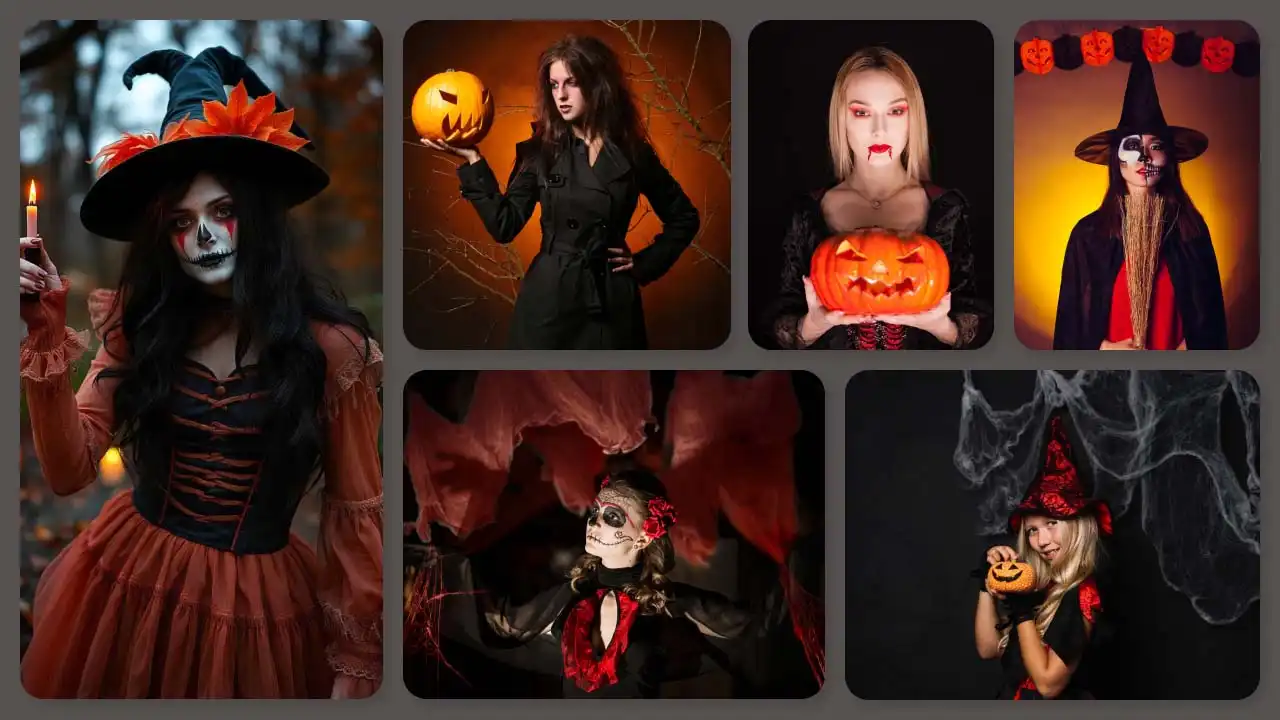
Want to make your social media popular this October? Learn how to make a Halloween makeup transition video with AI. This is the easiest way to capture massive engagement without spending hours on makeup, outfit and face paint.
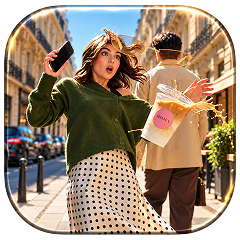 Create the Floating Fall Trend
Upload your image and create a cinematic floating fall effect.
Create the Floating Fall Trend
Upload your image and create a cinematic floating fall effect.
Why Is This Halloween Makeup Transition Trending?
This viral format takes over social feeds every autumn, making audiences hooked on clever editing and striking new looks.
- Format: In general, these videos start with a natural and fresh face and immediately make a transition using a hand and snapping fingers to showcase a crazy and spooky outfit.
- Popular Looks: The influencers creating these types of videos are usually going for some scary looks, such as skeleton face paint, horrifying vampires, or half clown makeup.
- Why It Spread: People enjoy the changes from typical faces to unusual ones. That’s why these clips are easy to promote on social media platforms and show them to more people who will engage in these clips.
What Is Necessary For Making the Video
- Concept & Prompting: A descriptive idea of the final transformation halloween look you want to achieve.
- Clear Reference Photo/Photos: A front-facing, well-lit portrait of yourself with minimal shadows or heavy filters.
- AI Video Model: Platforms that support image-to-video or face-swapping capabilities (such as Kling 3.0, Seedance 2.5 or Wan 3.0 more styling apps).
How To Make A Halloween Makeup Transition Video With AI
Depending on the platform or the look that you want to get; you can build your clip using our presets and templates or can customize the prompts. Here is the complete breakdown of this:
Using Pre-defined Template
Step 1: Choose the halloween makeup look you want to film: Select your persona and upload clear front-facing portraits. Pick one crisp photo of yourself.
Step 2: Background, outfit and prompt: Select the background you want. Get a background setting (your dark, light, halloween-inspired) and where you are seen shooting this video. Apply stylistic things to align your outfit with the theme.
Step 3: Choose appropriate resolution and aspect. Select the layout that suits your clip. Choose from 9:16 to ensure proper optimization.
Using Reference to Video (with driving video)
- Go To Reference to Video: Navigate to LightX’s video platform’s reference or motion-transfer tool.
- Step 1: Define your Look: Establish a clear visual profile of the people in the video.
- Step 2: Use Video reference and replace Faces. If you own or have a source driving video then Configure that as your video reference. Write a precise prompt to replace the person. For example, replace person 1 with reference image 1.
Related Blog: How To Swap Face In a Video
Using Reference to Video without driving video
- Step 1: Define your Halloween makeup look. Establish a clear visual profile for your video character.
- Step 2: Generate using prompts if there is no driving video. If you don’t have a reference video, generate the whole effect using a detailed prompt. Clearly specify your parameters. Check out the Image to Video Generator for more relevant details.
1. Define person’s outfits, makeup & style
Detail the specific wardrobe pieces such as vampire look, clown look, IT look, in an expensive makeup and hair styling.
2. Define scene background, lighting, camera
Specify whether the shot uses a front facing selfie frame in the camera or ultra wide angle camera motion with dark dim light and dusky ambience.
3. Define how the character is acting (along with motion)
Explicitly outline the singing timing, steps and actions such as singing or dancing during a specific time or moment.
Halloween Makeup Transition Prompts You Can Copy
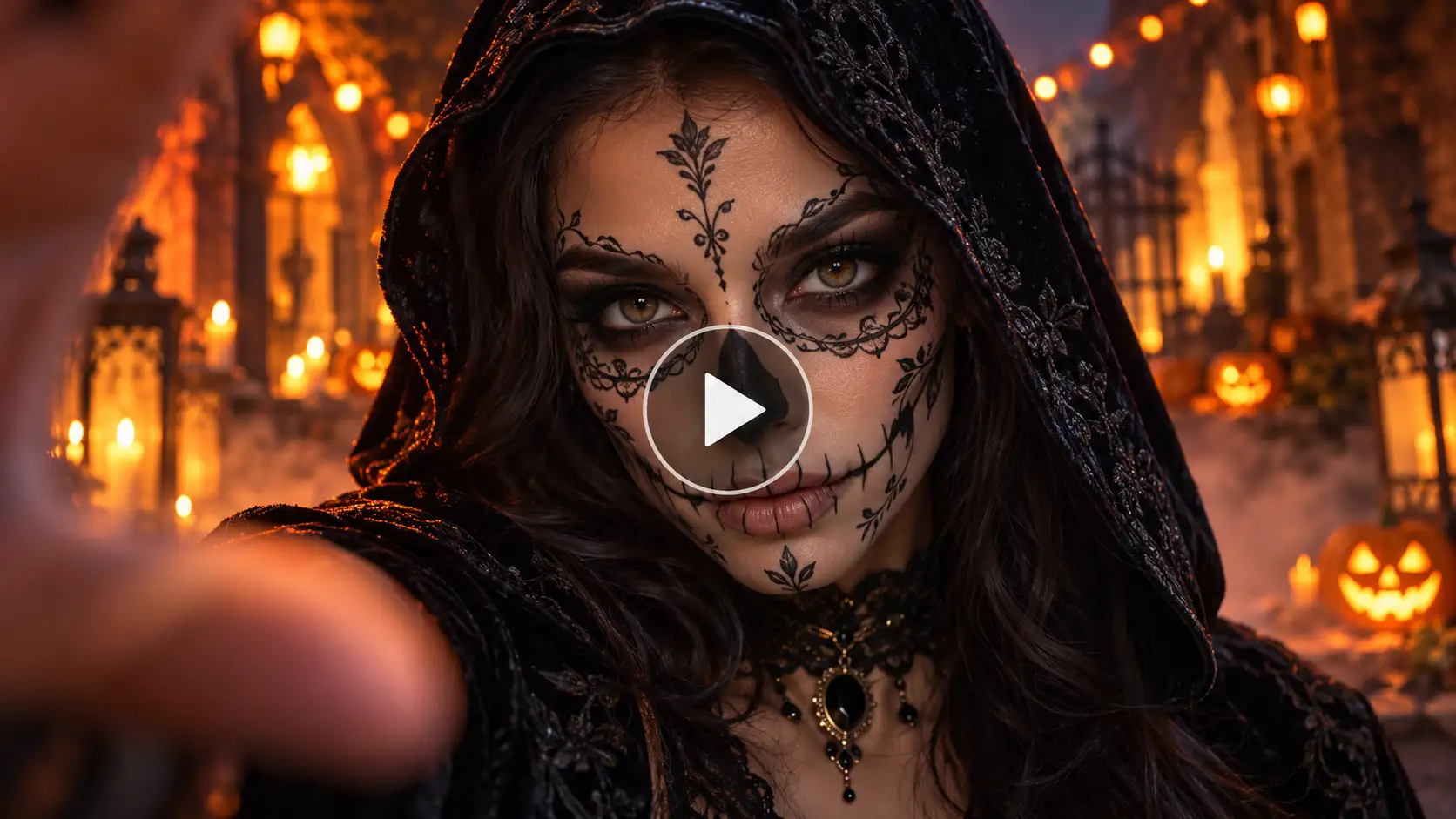
Detailed Prompt
Vertical 9:16 video, cinematic Halloween atmosphere at night, warm orange string lights, soft background haze. A close-up shot of a person with a natural bare face looking directly into the camera. From seconds 0 to 3, a hand briefly covers the lens; when it pulls away, the face seamlessly transforms into intricate, elegant skeleton face paint with delicate black floral motifs around the eyes and jawline, wearing a dark gothic velvet hood. Smooth morphing transition, high-end commercial aesthetic, hyper-detailed texture.
Halloween Makeup Looks to Consider
Try these amazing and trending looks for Halloween that will guarantee engagement on your posts.
- Skeleton: The black & white skeleton makeup is a simple design that focuses on the cheekbone and jaw areas.
- Half Clown: The design features one side painted in soft colors and the other with clown designs.
- Vampire: The idea here is to have the skin pale thanks to minimal dark colors.
- Zombie: The features of the makeup are faded colors combined with bruising and texture effects.
- Witch: This goes for black eyes with a touch of the witchy stuff or the palette colors of the lips.
- Ghost bride: White fading lost face with drooping makeup.
Advice for creating viral Halloween Makeup Transition Videos
- Be Consistent with the Same Face: The main idea here is to have a steady picture of the face.
- Sync the Sound: It would be better to use fresh music in combination with shots.
- Aspect Ratio: Optimize Aspect Ratio according to the mobile screen.
Conclusion
Creating a Halloween makeup transition look video does not require the use of a professional makeup kit. You can simply upload the picture you took and come up with the right prompts to get amazing results. Try now and become part of this trend now with LightX.
FAQs
What photo works best for a makeup transition video?
A well lit and natural photo works best for this type of AI video.
How long does the video take to generate?
For a 10 second long 480p video, it generally takes 3-4 minutes. And for a 20 second 720p video, it might take 10-15 seconds.
Can I do a half-face makeup look, like the split clown face?
Yes, you can do any makeup look using the prompts or simply use our presets.
How do I add smoke, fog or lighting effects?
Yes, you can add any kind of effects using text to video prompts.
 Create the Viral Hotel Lobby Trend 🎵🔥
Upload your image and transform it into a viral music video.
Create the Viral Hotel Lobby Trend 🎵🔥
Upload your image and transform it into a viral music video.