The rewatchable and thrilling clip of a phone being stuck to the outside of a speeding metro train window has left many netizens astonished. The non-chalant and effortless way of making such reels have become the norm. If you have been wondering how to make phone on train AI video content that looks completely real, you are in the right place. Let us cover everything you need to know about the phone stick trend, the phone on metro trend, and the famous Paris metro phone trend taking over social media.
 Follow us on Instagram
And get prompts daily
It is a cinematic journey within those 20 seconds when a person sticks their iPhone’s to the window and then runs alongside it to make an amazing transition video while the train keeps on speeding. The thrill in the video rises when the train leaves the station and the phone captures the true scenic views of the city. The internet is currently obsessed with the phone on train AI trend.
What Is the Phone on Train Trend?
From what we gather, this format usually features a person dancing or standing expressively on a metro station platform while a phone camera films the action. It is then followed by a mind-bending transition where the camera sticks to the outside of a moving train window effortlessly continuing to record everything. The video relies on seamless movement, realistic window reflections and mesmerizing cityscapes.
It spreads like wildfire because it brings together the two things that people love. Thrill and suspense. Some viewers instantly wonder how someone managed to let a phone go on the exterior of a high-speed metro train without even destroying it. It also challenges travel lovers to make this video for better online reach and engagement.
How To Make Phone on Train AI Video
Depending on the platform or the look that you want to get; you can build your clip using our presets and templates or can customize the prompts. Here is the complete breakdown of this:
Using Pre-defined Template
Step 1: Choose the character of the person featuring in the video. Select your persona and upload clear front-facing portraits. Pick one crisp photo of yourself. The generator will create the rest and make your video as you want.
Step 2: Background, outfit and prompt: Select the background you want. Get a background setting (metro station, subway station and Union stations) and where you are seen shooting this video. Apply stylistic things to align your outfit with the theme.
Step 3: Choose appropriate resolution and aspect: Select the layout that suits your project. Choose from 9:16 to ensure proper optimization.
Using Reference to Video (with driving video)
- Go To Reference to Video: Navigate to LightX’s video platform’s reference or motion-transfer tool.
- Step 1: Define your Characters: Establish clear visual profiles of the person in the video.
- Step 2: Use Video Reference and Replace Faces: If you own or have a source driving video (such as the phone on the train video clip). Configure that as your video reference. Write a precise prompt to replace the faces and models. For example, replace person 1 with reference image 1.
Using Reference to Video without driving video
- Step 1: Define your Characters. Establish a clear visual profile for your video character.
- Step 2: Generate using prompts if there is no driving video. If you don’t have a reference video, generate the whole effect using a detailed prompt. Clearly specify your parameters. Check out the Image to Video Generator for more relevant details.
- Define character image outfits, makeup & style
Detail the specific wardrobe pieces such as party clothes, elite clothes, work clothes, casual weekend clothes, shirt or pants with statement jewellery, makeup and hair styling. - Define scene background, lighting, camera Specify whether the shot is a clean and natural looking shot that transitions into a high speed shot later gradually. You can also explain the angle, camera motion with bright light and the natural ambience.
- Define how the character is interacting or acting (along with motion)
Explicitly outline the singing timing, expressions, dance actions such as singing or dancing during a specific time or moment. For ex: do a lip syncing video at start that turns into a high speed chase when the train moves rapidly.
Why Make It with AI Instead of Filming It?
In reality, this stunt is not practical or safe. Although, the trend has a lot of praise but it is just too risky. Trying to pull off this stunt in real life is incredibly dangerous. Using AI video generators to recreate trend with AI offers several advantages:
- Safety: No real stunt needs to be attempted. There is zero risk of losing an expensive device on the tracks.
- Accessibility: You might not have easy access to a specific metro station like shown in the video.
- Creative Freedom: You can generate a fictional AI scene in seconds. Then transform a simple photo into a blockbuster travel reel.
What You Need Before You Start
Before diving into creation, gather your core assets:
- Reference Image: A clear reference image to use for image to video AI tools. Here, you need to upload a well lit and front facing image.
- An advanced video tool that supports motion parameters and reference images. Use LightX image to video or reference to video tool to create this video hassle-free.
- A solid understanding of your needs whether it is a local commute or a celebrated destination metro AI video.
Use This Prompt Directly
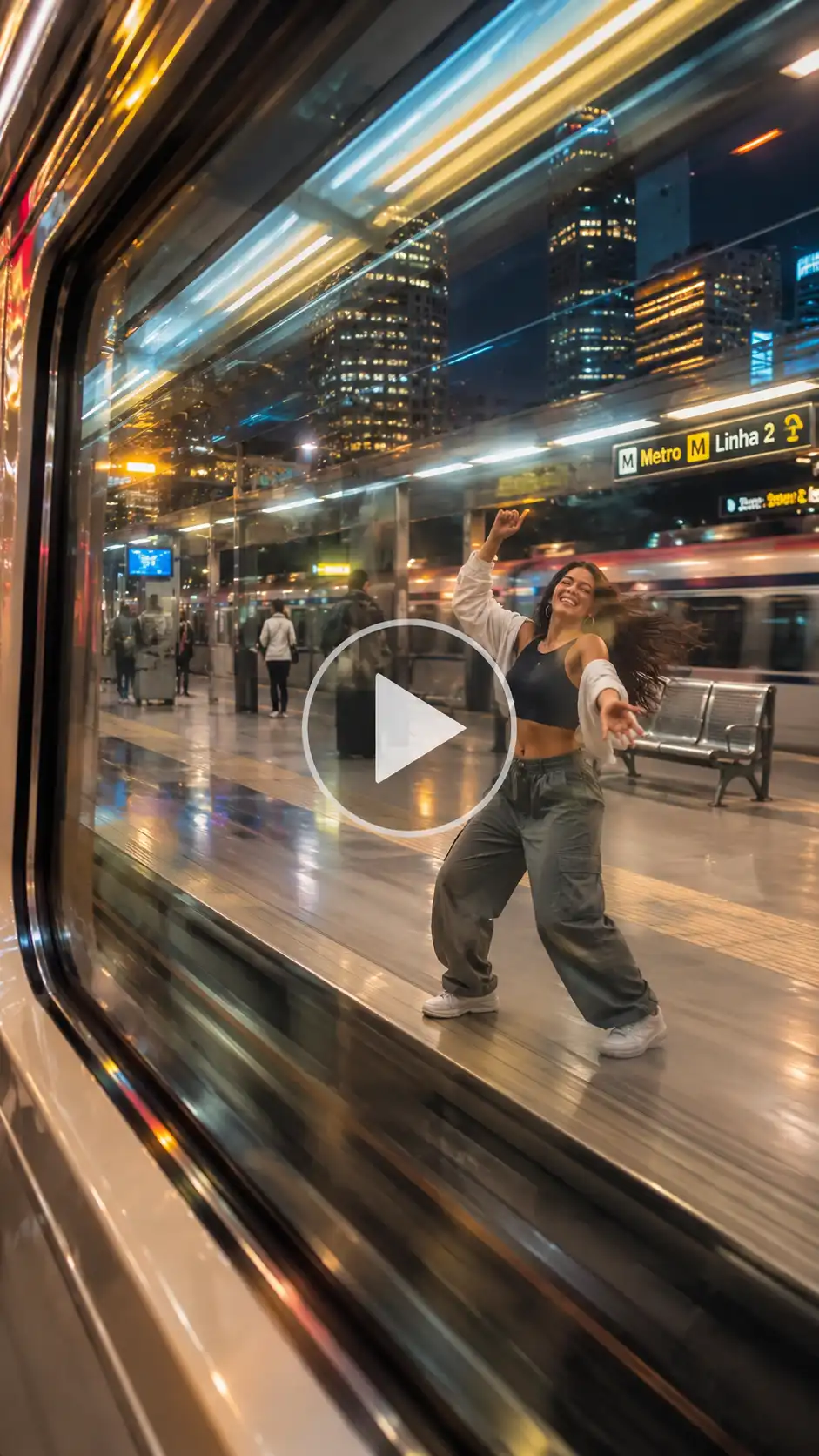 Prompt:
A hyper-realistic video starting with a person dancing cheerfully on a bright urban metro platform. Suddenly, the camera perspective shifts rapidly, sticking to the outside window of a moving train carriage. The glass shows realistic motion blur, speed streaks, reflections of city lights, and an outside view of a fast-moving subway tunnel and sparkling cityscape. Cinematic lighting, photorealistic textures, smooth viral Reels transition.
Also Read: How To Make I Wanna Love You AI Dance Video
Scene Ideas For Trendy Videos
You can use the concepts below to maximize your reach and engagement. This reel :
- Paris City Subway: Showcase classic Parisian architecture with an iconic Eiffel Tower night video glowing in the background.
- London Tube: Feature the characteristic tiled walls and distinctive red-and-blue branding of the Underground.
- New York Subway: Capture gritty urban graffiti, steel beams, and underground industrial aesthetics.
- Tokyo Train Platform: Highlight hyper-organized platforms, neon signs, and ultra-clean transit cars.
- Indian Metro Station: Recreate a vibrant Delhi Metro reel trend style with bustling crowds and modern station architecture.
- Night-City Ending: Conclude your clip with a sweeping panoramic shot of a skyline lit up after dark.
Different Ways to Make this Trend
Keep your content fresh and rolling by experimenting with different angles:
- Incorporate a metro dance video intro before the window transition kicks in.
- Play with a platform run video where the camera chases a departing train.
- Focus heavily on the camera transition video mechanics to make the cut look completely invisible.
- Design unique travel video ideas combining multiple cities into a single effortless sequence.
What To Avoid
- Write your prompts in simple language. Writing in a complicated and long form way can confuse AI. You may not get the desired results.
- Do not ignore window reflections. A train without glasses or windows can look fake. Make sure your videos do not have any hallucinations.
- You should try to generate more than 1 video and then compare them. Failing to compare these videos can make your video look unnatural.
Conclusion
Learning how to make phone on train AI videos can open you up to many more opportunities. There are endless things you can do to make your social media channels famous. With the AI video generator by LightX, you can easily make the phone on train AI trend effortlessly. Pick your favorite city backdrop and put in some prompts to start creating the newest content.
FAQs
- What kind of photo works best?
A clear base image that looks natural and well lit will work best. - What resolution should I export the video in?
For a video for phones and reels, 480p or 720p works best. - What file formats and sizes can I upload?
You can upload WebP, JPEG and PNG format images. There is no limit to the file size you can upload. - How long can the video be?
The video can be up to 30 seconds long.