How to Use GPT Image 1.5 on LightX
Select "GPT Image" from AI Models.
Choose Text to Image or Image to Image, then open the AI Model dropdown and select GPT Image 1.5.
Write your prompt.
Describe the image you want to create or the edits you'd like to make in the prompt box.
Generate and download.
Click Generate to create your image. Review the output, refine your prompt if needed, and download the final image.
OpenAI's GPT Image 1.5, Now on LightX
LightX now brings OpenAI's GPT Image 1.5 to one platform for both text-to-image and image to image editing. Unlike diffusion-based models, GPT Image 1.5 is a transformer based model, meaning it builds an image the same way GPT builds a sentence. It generates it step by step rather than refining it out of noise. That's also part of why it's so reliable with written text inside the output.
With Three Quality Tiers: Low, Medium, High
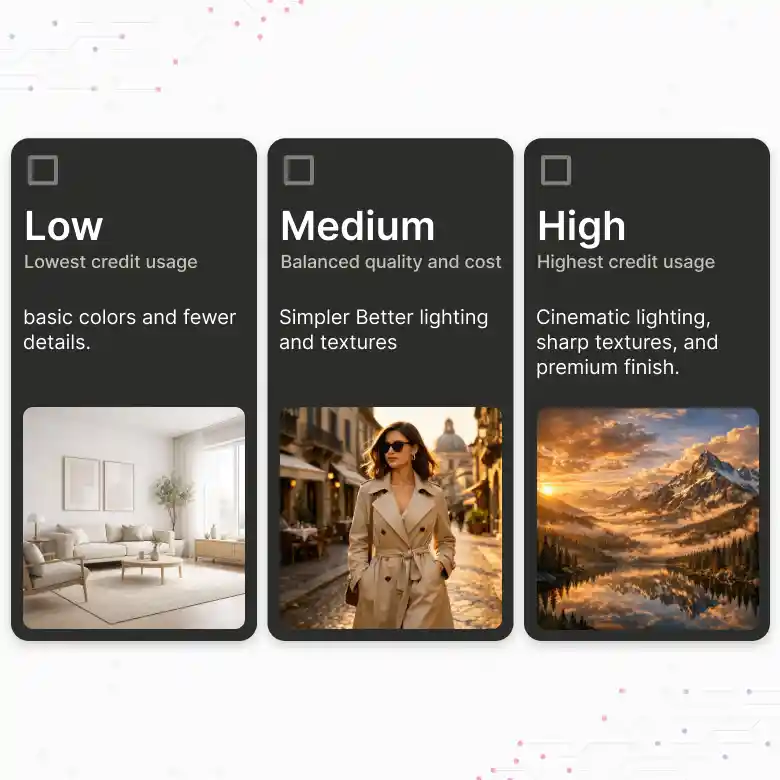
Choose the quality level that fits your requirement.
• GPT 1.5 Low: A fast and cheaper option for generating ideas and prototyping
• GPT 1.5 Medium: Balances speed and detail for everyday work
• GPT 1.5 High: It gives the most refined output for final assets
Prompt in Any Language, Generate Accurately
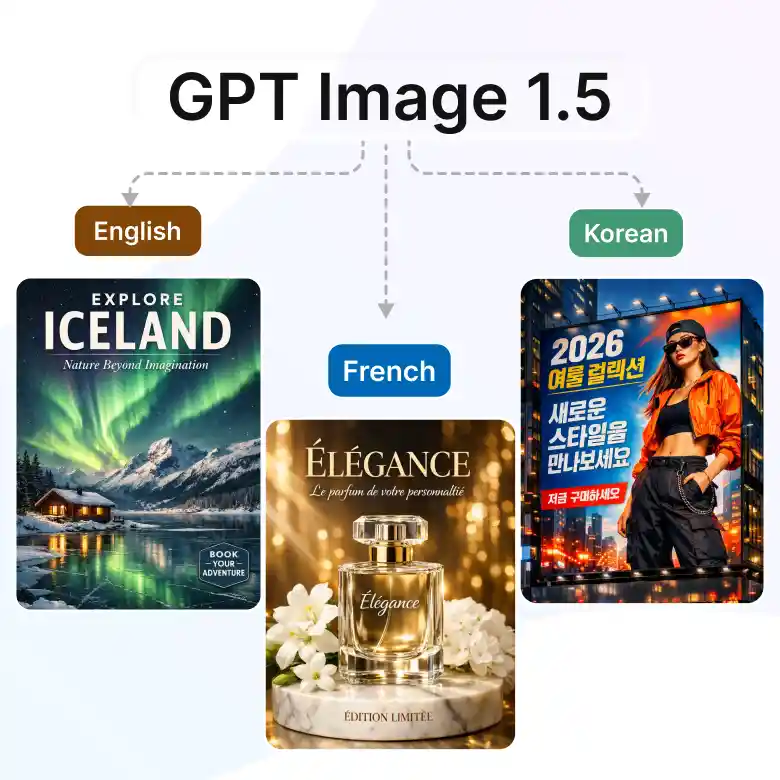
GPT Image 1.5 understands prompts in any language, so you're not limited to writing in English. It is genuinely reliable with text. Prompt in any language, generate in correct spelling, spacing, and placement. Great for signs, product labels, storefronts, ad creatives, anywhere the words actually need to be readable.
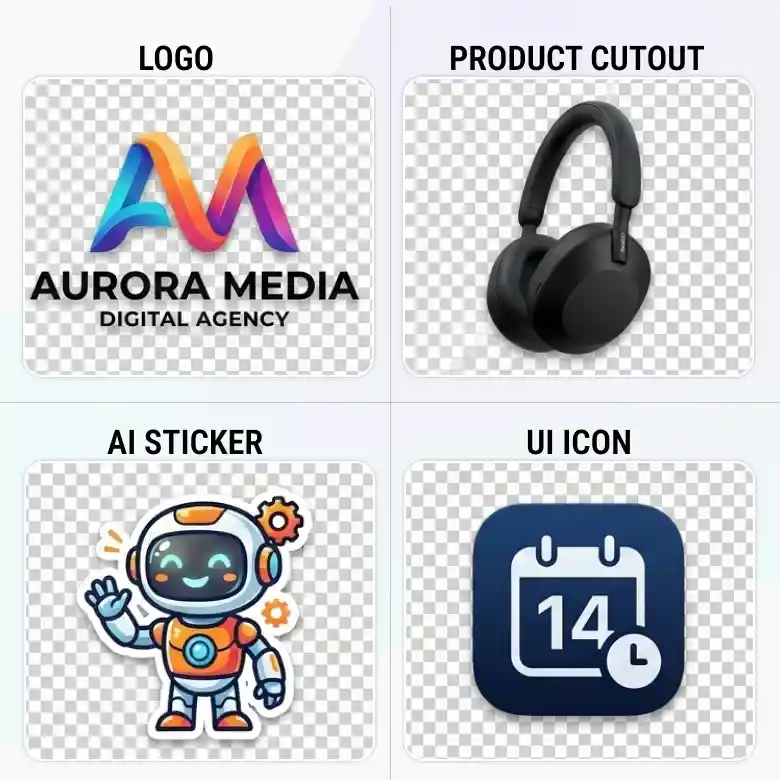
Generate Images with Transparent Backgrounds
GPT Image 1.5 can generate images with a transparent background. It makes this model an excellent choice for creating assets like logos, product cutouts, UI icons, and stickers. (Make sure to download your output in PNG to retain generated transparency)
Better Quality in Less Time
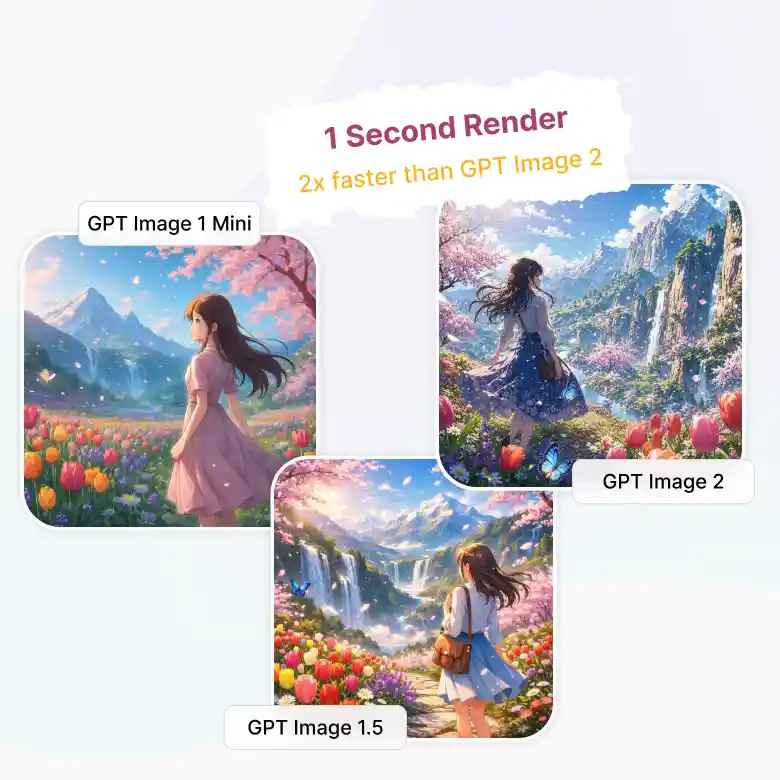
GPT Image 1.5 sits right in the middle of the GPT Image family. It renders in about a second, twice as fast as GPT image 2, while still handling prompts more reliably than GPT 1 mini. That’s sharper results without the longer wait for you.
Prompting Tips for GPT Image 1.5
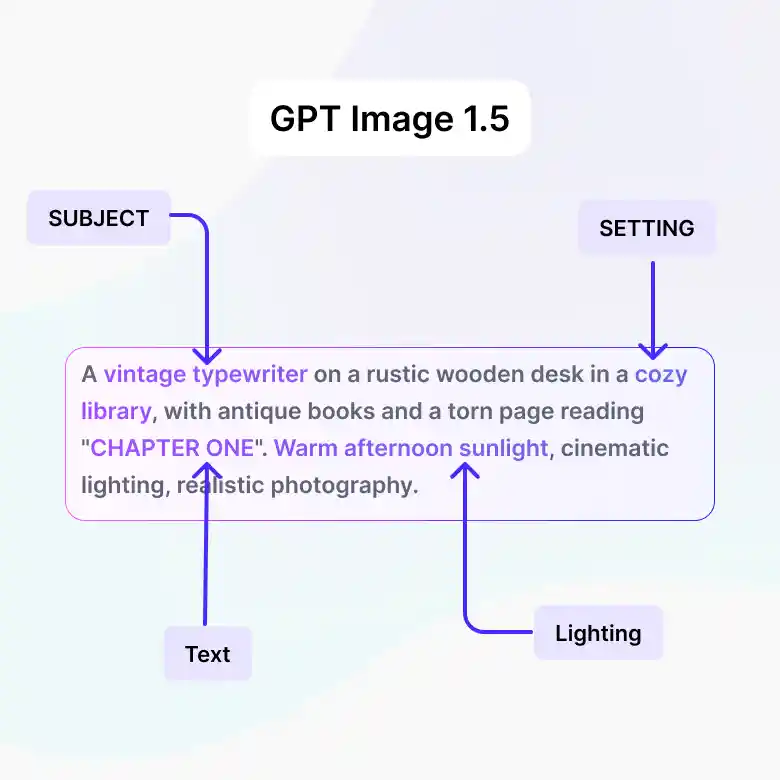
GPT Image 1.5 works the same way you'd talk to ChatGPT. Prompting in human language works just fine. Just describe the subject, the setting, and any text you want in any order, or use just commas and words.
Example: "A vintage typewriter on a cluttered desk, warm afternoon light, with a torn page beside it reading 'CHAPTER ONE.'"
Tips:
• Put exact text in quotation marks for accurate rendering.
• Spell the text correctly and match the exact capitalization you want
Who Should Use GPT Image 1.5?
This tool is a good fit if you are a:
✔ Social media content creator needing posts, thumbnails, or graphics with clean text baked right in.
✔ Designer needing transparent logo, designs, and assets cutouts.
✔ Small business owner who needs quick flyers or ad creative with accurate text.
This tool may not be the best fit if you:
❌ Need the highest possible resolution or 4K output.
❌ Need the fastest, lowest-cost option for high-volume simple generations.

Why Use GPT Image 1.5 on LightX?
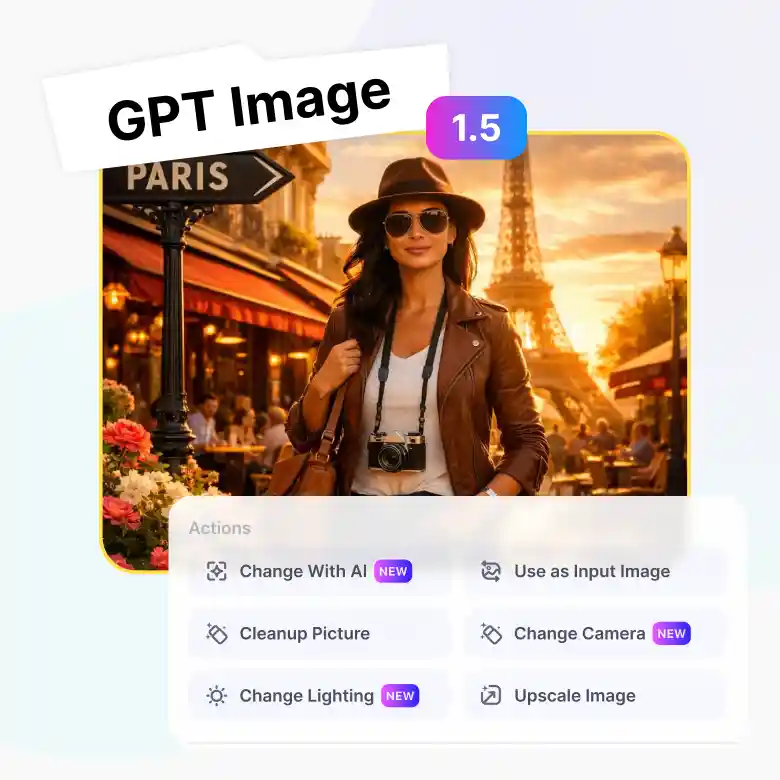
GPT Image 1.5's output is even more useful paired with LightX's online editing tools built right around it. Generate once, then refine without starting over.
✔ Use your output as new input
✔ Change with AI — follow-up prompts for specific edits
✔ Negative prompts to skip unwanted elements
✔ Upscale, right inside the tool
✔ Change lighting after generation
✔ Change camera angle without regenerating
More AI Models at Your Fingertips
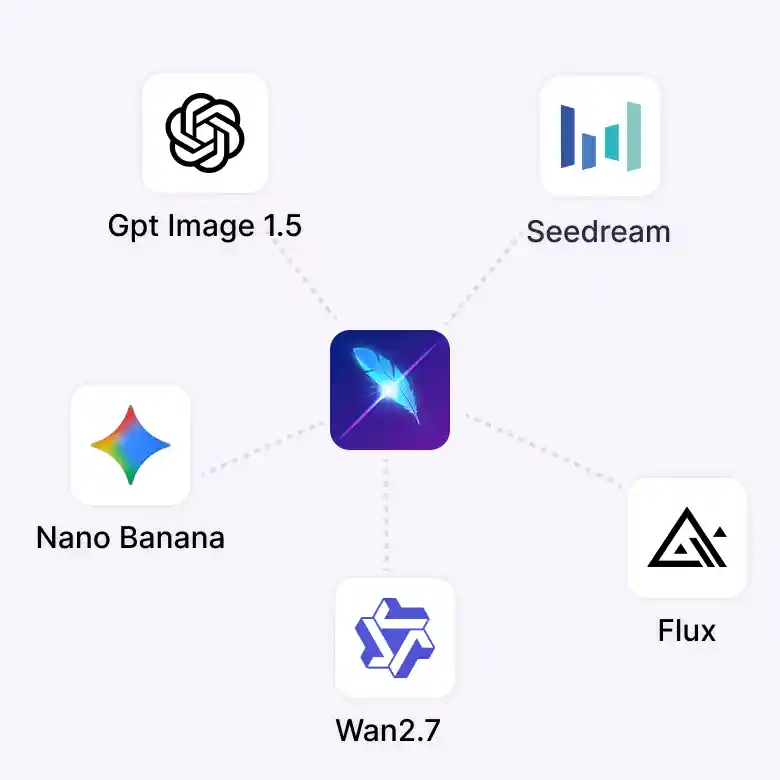
GPT Image 1.5 isn't the only option in your toolkit. Switch between models right from the same screen depending on what you need:
Wan → accurate in-image text
Seedream → Artistic, cinematic photos
Flux 2 Pro → Sharp detail and exact HEX color matching
Nano Banana Pro → Fast, everyday generation
Pick the model that fits the task, without leaving the page.