How to Use Veo 3.1 on LightX?
Choose Mode & Model
Select Text to Video or Image to Video, then choose Veo 3.1 from the AI Model dropdown.
Set Your Options
Add your prompt or image, then choose your aspect ratio, resolution, duration, and audio.
Generate & Download
Hit Generate, review your clip, and download it.
Greater Realism of Veo 3.1 now on LightX
Veo 3.1 is Google's flagship video model, built for physics and realism. Combined with LightX’s online features, It's the model to reach for when the output needs to be final. Greater prompt adherence to generate cinematic camera movement, natural lighting, and accurate physical behavior, without a second pass in another tool.
For Filmmakers and High-End Social Content
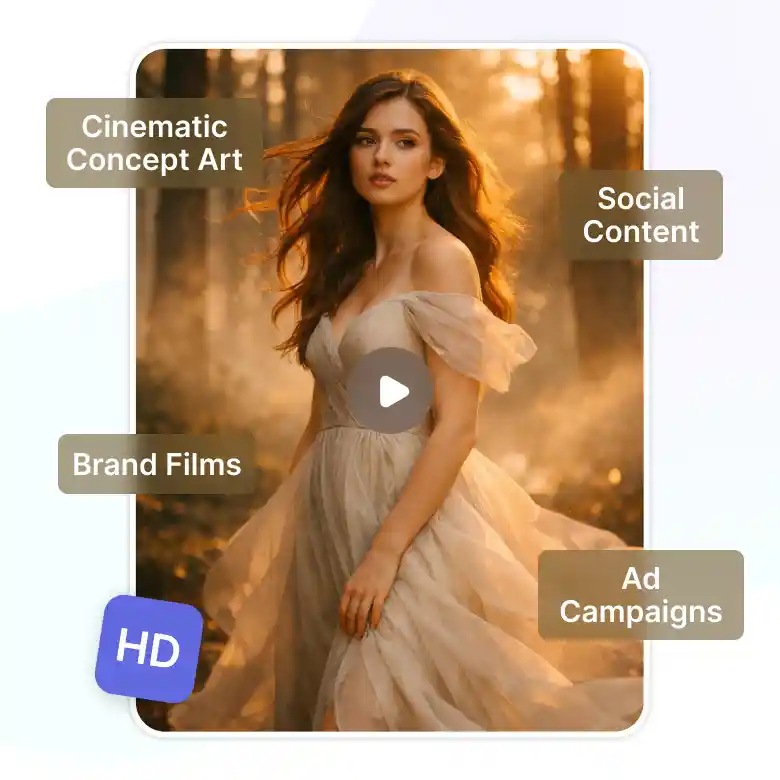
Veo 3.1 is built for work where the output has to be final, not a draft: ad campaigns, brand films, cinematic concept art, and social content meant to stand out rather than blend in. If you're producing something a client or audience will actually see as the finished product, this is the tier for it. The video can go up to 4K for the broadcast-quality work demands.
Built In Native Audio
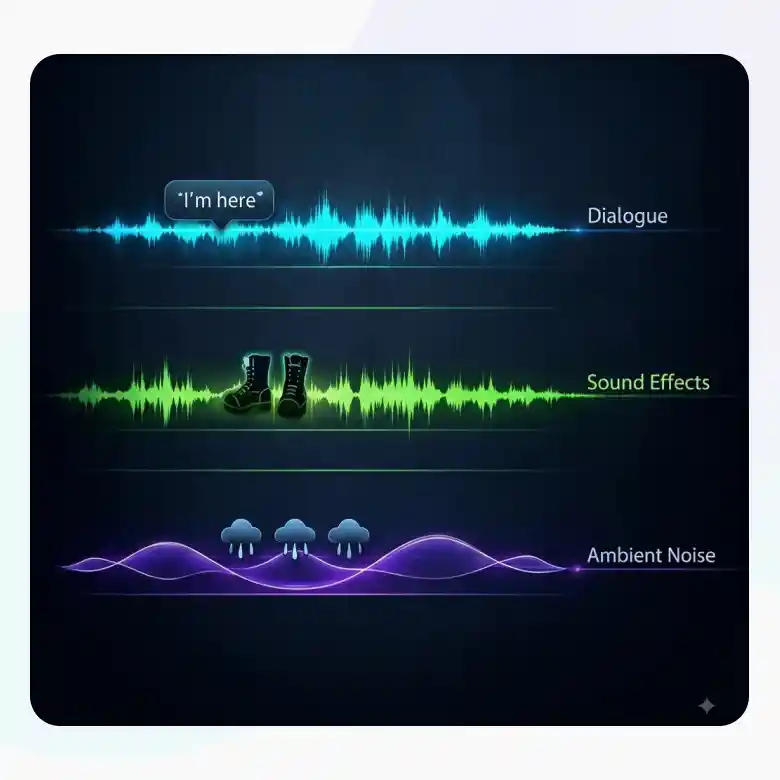
Turn on audio, and Veo 3.1 generates sound to match your scene. It is capable of natively generating:
• Dialogue: Put what a character says in quotes, and their mouth movements will synchronize it
• Sound effects: Generated automatically based on what's happening in the scene, footsteps, a door closing, rain hitting a window
• Ambient noise: Background atmosphere, like city traffic or wind, generated to match the setting you describe
Prefer silence? Leave audio off for unscored clip.
Keep Your Characters Consistent
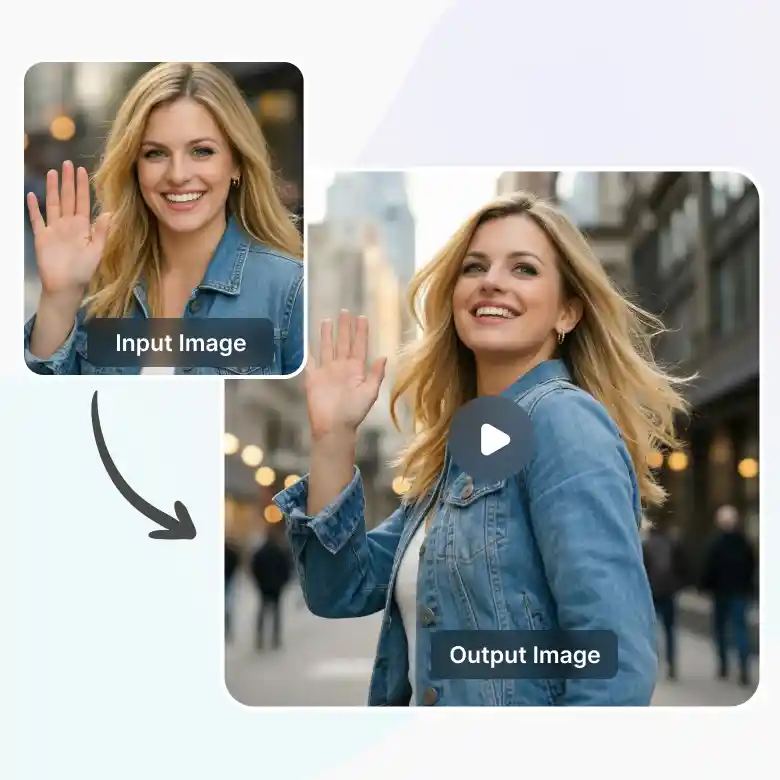
Upload your input image, and Veo 3.1 keeps the face unchanged while animating it. The motion is precise enough that the character still looks exactly like the person or subject you uploaded, not a reinterpretation of them.
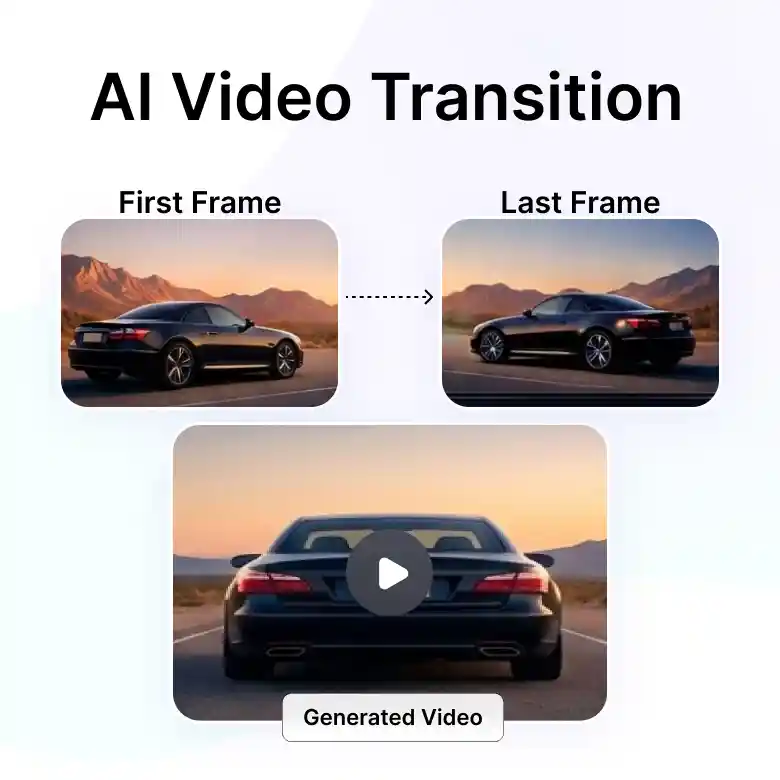
First and Last Frame Transitions with great camera controls
Set a starting and ending image for a smooth transition between them, or prompt an object's exact path, like "the car drives left to right, slowing as it turns." Direct the camera too: panning, zooming, tracking, whatever the shot calls for. Practically, that means:
✔ Precision for planned shots
✔ Fewer regenerations
✔ Usable for real production work
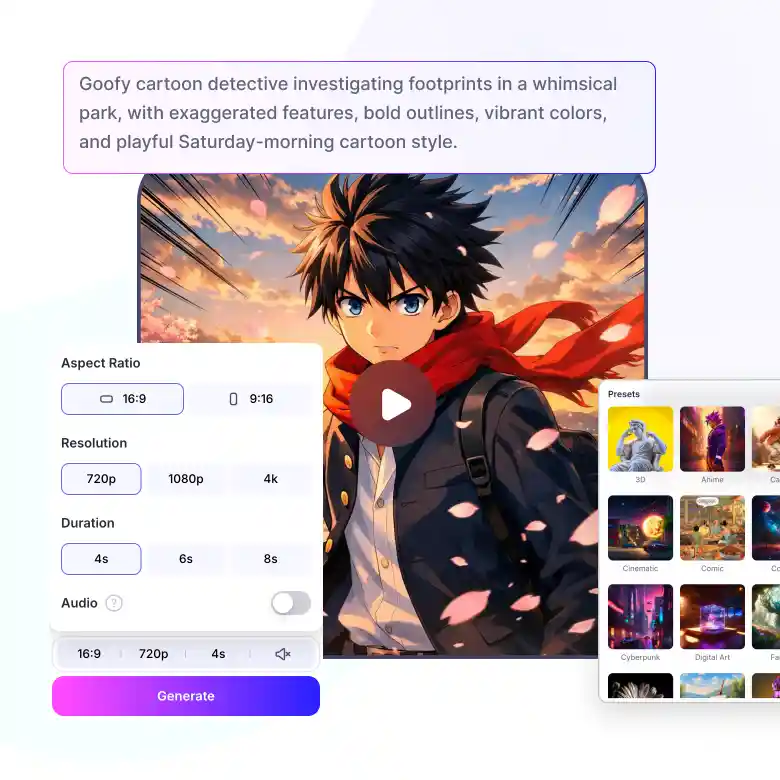
Veo 3.1 Text to Video
Generate a video straight from a text prompt. LightX's Text to Video comes with:
• Style Presets: 3D, Anime, Cartoon, Cinematic, Comic, Cosmic, Cyberpunk, Digital Art, Fantasy, and more
• Clip Length (Duration): 4, 6, or 8 seconds
• Aspect Ratio: 16:9 or 9:16
• Resolution: 720p, 1080p or 4K
• Audio: Optional, toggle on or off
• Credits: Starts at 120 credits, varies with resolution, duration, and audio. Exact cost shown before you generate.
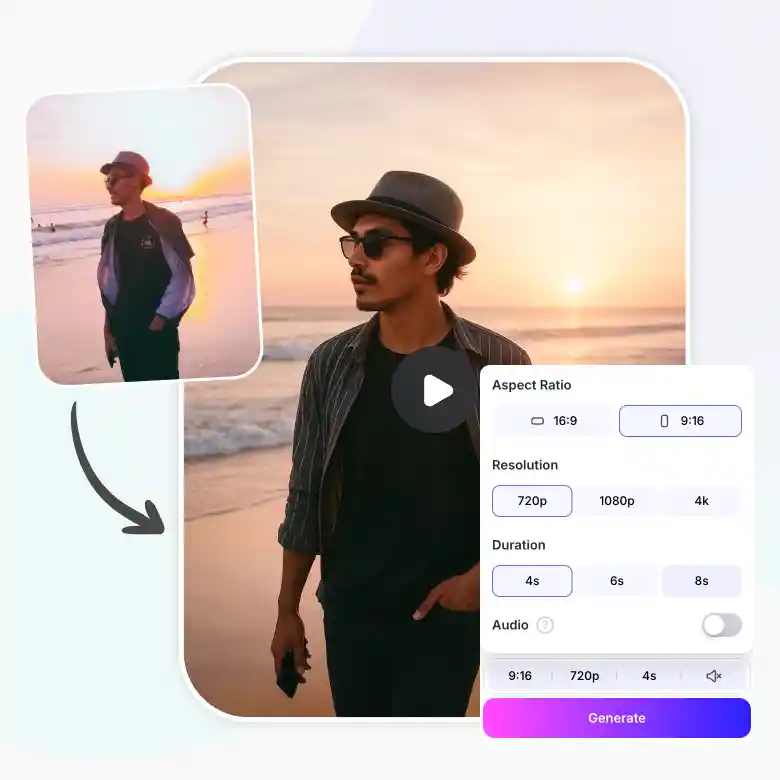
Veo 3.1 Image to Video
Upload a photo and turn it into a moving video clip. LightX's Image to Video comes with:
• Multi input Images: Upload 1 image, or enable a 2nd for more control
• Clip Length (Duration): 4, 6, or 8 seconds
• Aspect Ratio: 16:9 or 9:16
• Resolution: 720p, 1080p or 4K
• Audio: Optional, toggle on or off
• Credits: Starts at 120 credits, varies with resolution, duration, and audio. Exact cost shown before you generate.
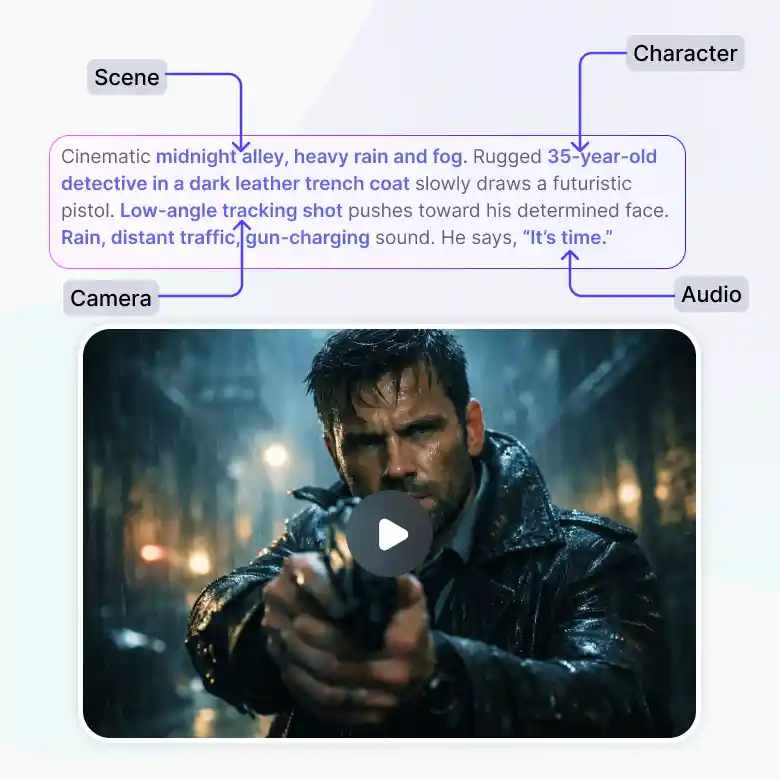
Prompting Veo 3.1
Describe the scene the way you'd explain it to a person. Example: "Create a cinematic action scene of a medieval fantasy character drawing a sword."
There are some elements to include such as:
• Scene: places, weather, indoor/outdoor, urban/rural, time of day
• Character: expressions, actions, posture, clothing, age
• Camera: panning, zooming, tracking, static, angle
• Audio: dialogue, sound effects, ambient noise, music, silence
Tips:
• Put dialogue in quotation marks
• For a video with entirely different scenes, generate a few short clips separately, then compile them using a video editor