How to Use Veo 3.1 Fast on LightX?
Choose Mode & Model
Select Text to Video or Image to Video, then choose Veo 3.1 Fast from the AI Model dropdown.
Set Your Options
Add your prompt or image, then choose your aspect ratio, resolution, duration, and audio.
Generate & Download
Hit Generate, review your clip, and download it.
Google's Speed-Optimized Veo 3.1 Fast is Here
Veo 3.1 Fast is Google's speed-optimized version of Veo 3.1. It’s built for creators who need results quickly without giving up much on quality. It trades a small amount of visual polish for a real jump in speed. You can generate and review motion graphics in roughly half the time Veo 3.1 Standard takes.
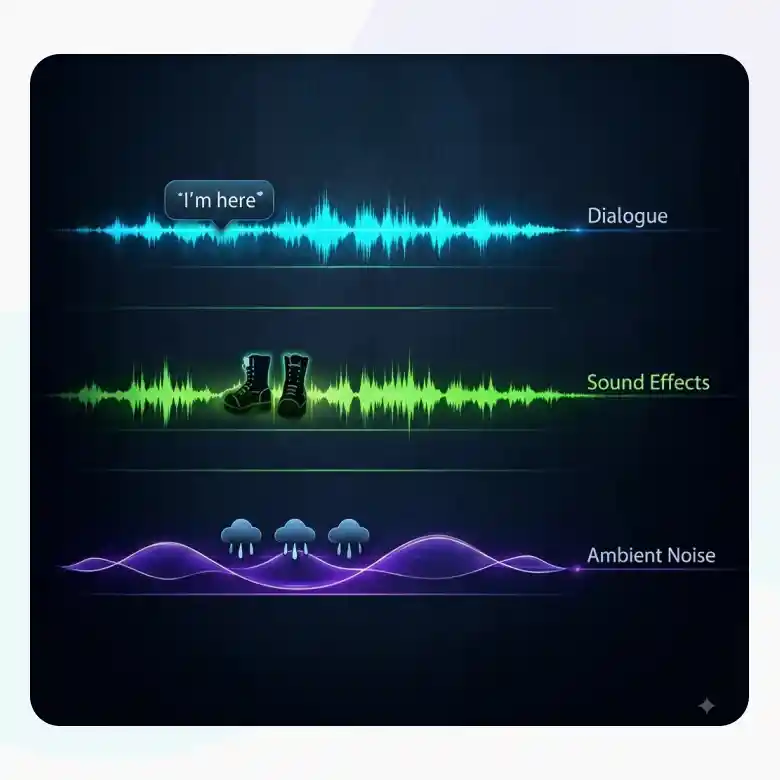
With Audio: Dialogues, Ambient noise, Sound effects
Turn on audio, and Veo 3.1 Fast generates sound to match your scene, no separate audio tool, no syncing anything manually after the fact.
• Dialogue: Put what a character says in quotes, and their mouth movements will match it
• Sound effects: Generated automatically based on what's happening in the scene, footsteps, a door closing, rain hitting a window
• Ambient noise: Background atmosphere, like city traffic or wind, generated to match the setting you describe
Prefer silence? Leave audio off for unscored clip
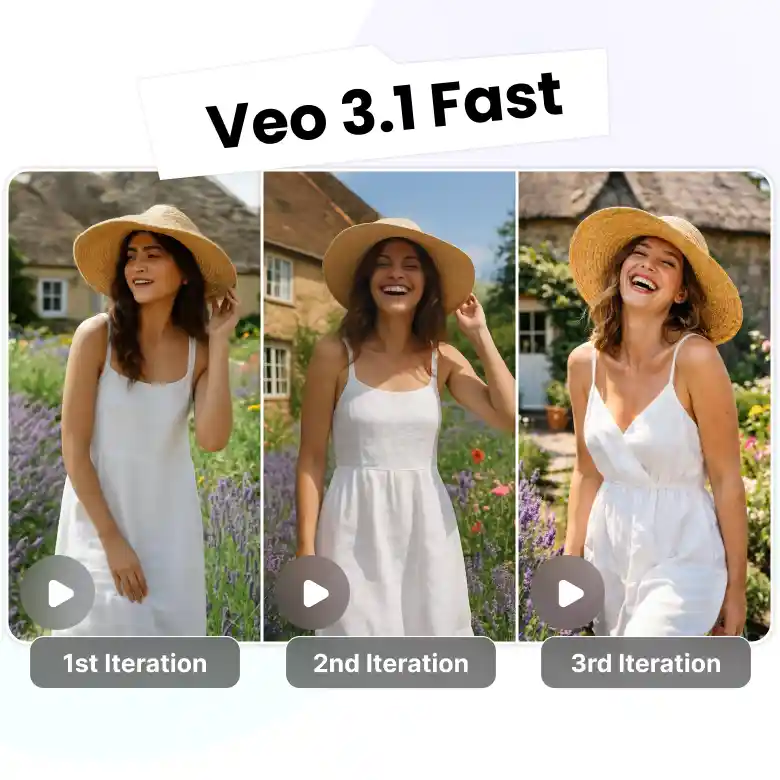
Used for Idea Iteration
Veo 3.1 Fast is an excellent choice for testing ideas before committing to a final version. Run a few quick, cheap generations to see what actually works for a higher-fidelity final pass. This saves both credits and time compared to fine-tuning a prompt at more credits. This helps in:
✔ Testing a concept before a full production
✔ Trying a few prompt directions
✔ Making quick short-form content for Reels, Shorts, or TikTok
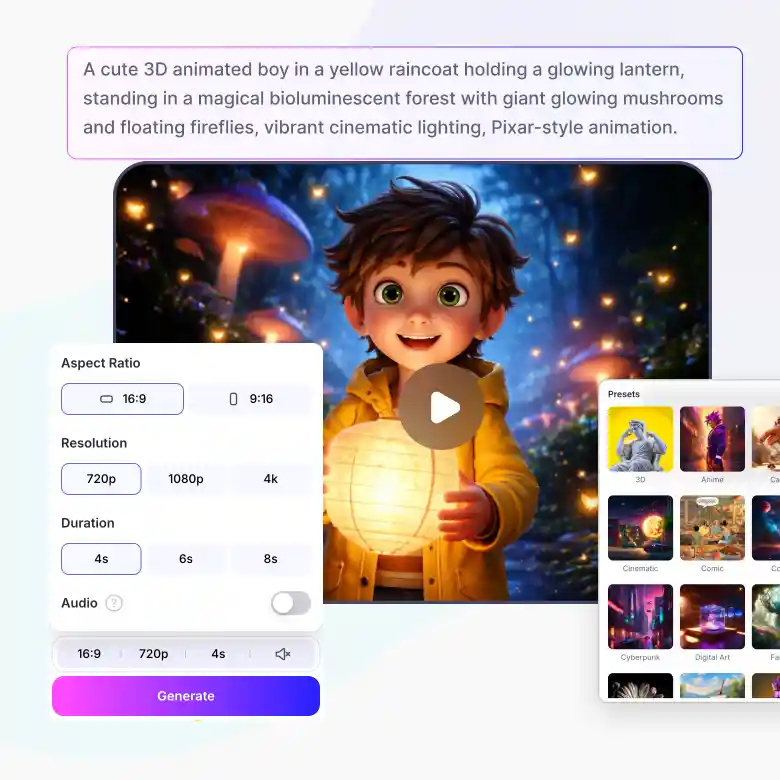
Veo 3.1 Fast Text to Video
Generate motion graphics straight from a text prompt. Veo 3.1 Fast combined with LightX AI Text to Video comes with many features:
• Style Presets: 3D, Anime, Cartoon, Cinematic, Comic, Cosmic, Cyberpunk, Digital Art, Fantasy, and more
• Duration: 4, 6, or 8 seconds
• Aspect Ratio: 16:9 or 9:16
• Resolution: 720p, 1080p, or 4K
• Audio: Optional, toggle on or off
• Credits: Starts at 80 credits, varies with resolution, duration, and audio. Exact cost shown before you generate.
• Negative Prompt: Specify what to exclude from the generation.
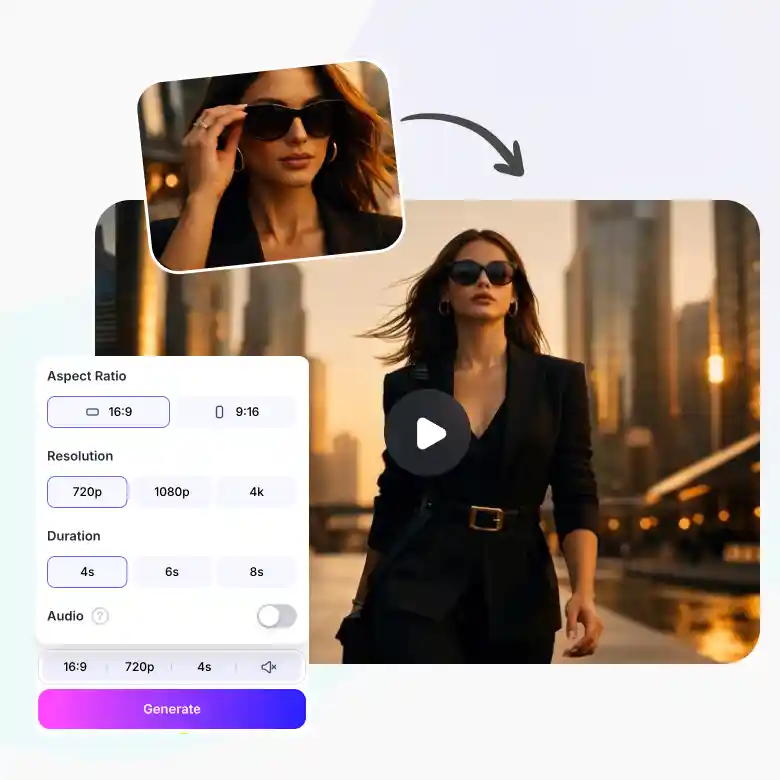
Veo 3.1 Fast Image to Video
Upload a photo and turn it into a moving video clip. Veo 3.1 Fast combines with LightX AI Image to Video comes with many features:
• Multi input Images: Upload 1 image, or enable a 2nd for more control
• Duration: 4, 6, or 8 seconds
• Aspect Ratio: 16:9 or 9:16
• Resolution: 720p, 1080p, or 4K
• Audio: Optional, toggle on or off
• Credits: Starts at 80 credits, varies with resolution, duration, and audio. Exact cost shown before you generate.
• Negative Prompt: Specify what to exclude from the generation.
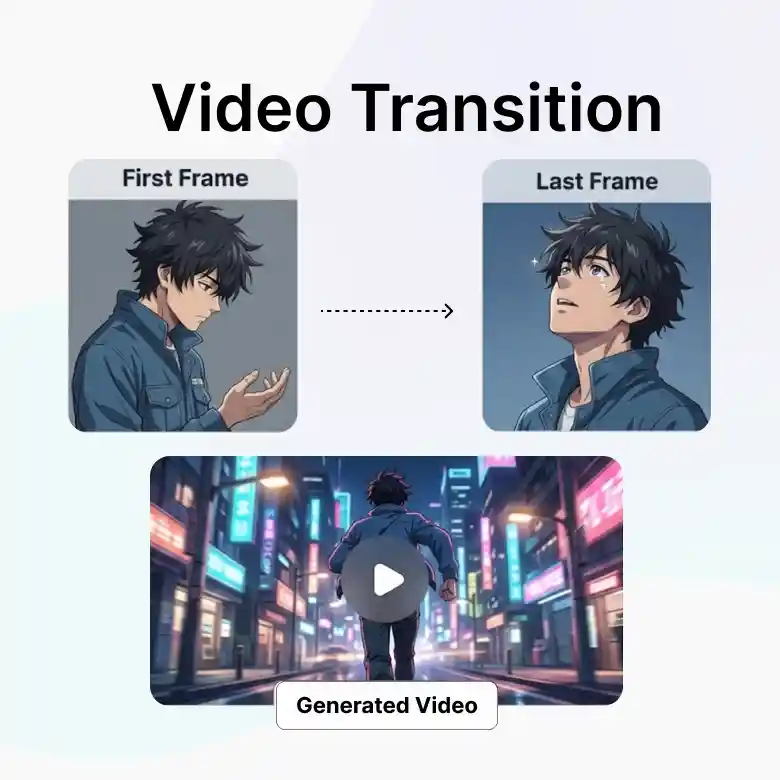
Enables Frame-to-Frame Generation
Upload a starting image and an ending image, and Veo 3.1 Fast generates the motion that connects them. Useful for a specific transition you already have in mind like a character talking to another character in the next frame. Just enable the 2nd image and upload both the characters and describe the motion between the two frames within your rest of the prompt.
How to Write Prompts for VEO 3.1 Fast
Describe the scene the way you'd explain it to a person.
Example: "A slow tracking shot follows a knight crossing a mist-covered battlefield at dawn, armor catching faint golden light. He draws his sword, the blade ringing softly, breath visible in the cold air, distant crows calling."
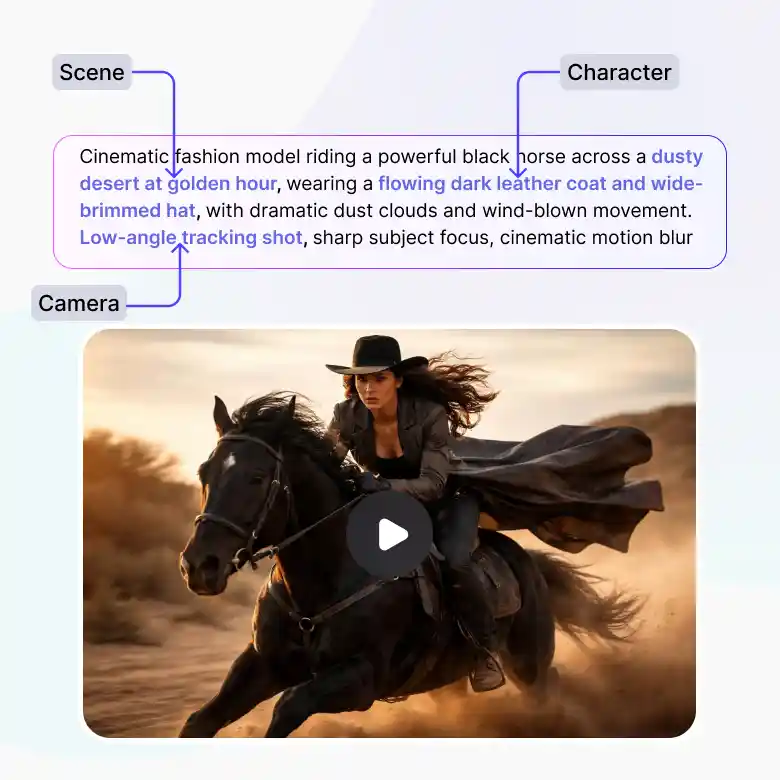
There are some elements to include such as:
• Scene: places, weather, indoor/outdoor, urban/rural, time of day
• Character: expressions, actions, posture, clothing, age
• Camera: panning, zooming, tracking, static, angle
• Audio: dialogue, sound effects, ambient noise, music, silence
Tips:
• Put dialogue in quotation marks
• For a video with entirely different scenes, generate a few short clips separately, then compile them using a video editor
What You Can Create with Veo 3.1 Fast
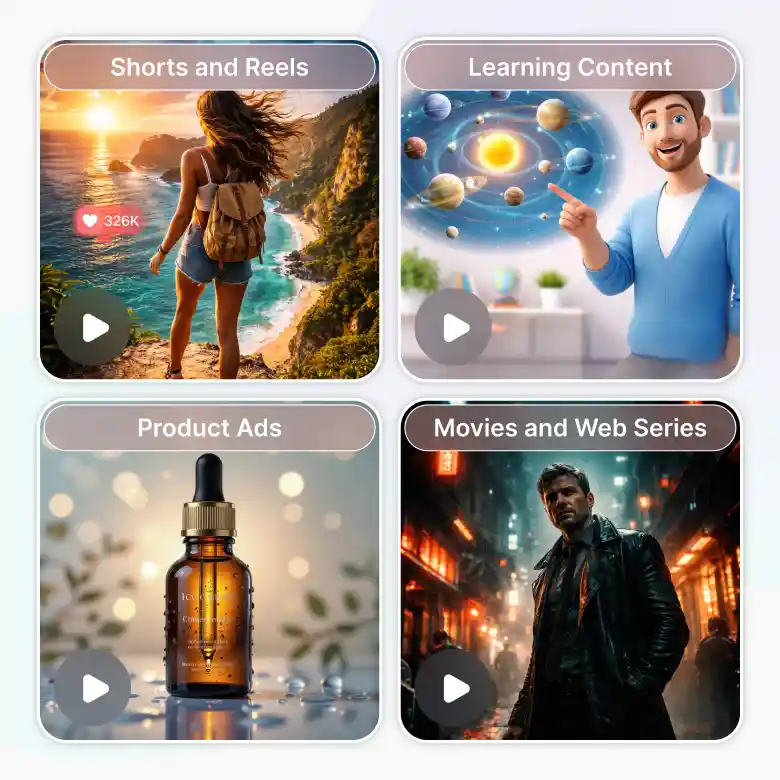
Generate a bunch of content with Veo 3.1 Fast:
• Shorts and Reels for personal content
• Pedagogy or educational videos
• Product ads: upload a product photo and turn it into a moving promotional clip
• Music visuals for YouTube
• Video invitation and greetings for birthdays or festivals
• Short movies and web series